
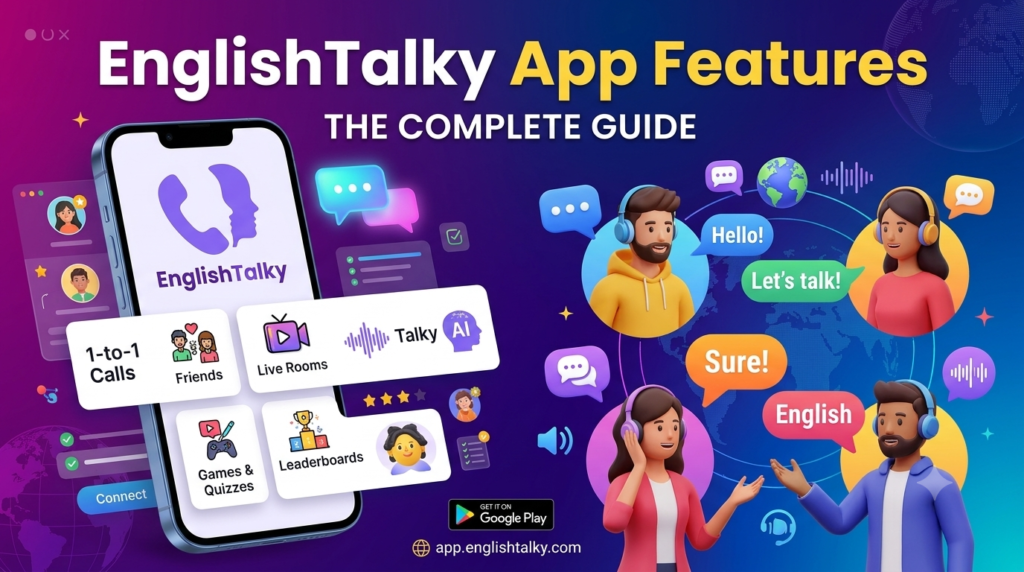
Everything you can do in the free English speaking app that connects you with real people.
Most English apps teach you about the language. EnglishTalky helps you use it. Open the app, tap one button, and within seconds you are talking to a real learner from another part of the world. No camera, no scheduling, no teacher to impress.
But the call button is only the beginning. EnglishTalky also has live group rooms, private chat, step-by-step lessons, word games, ratings, leaderboards, friends and more. This guide walks through every feature, so you can decide where to start and how to get the most out of each one.
EnglishTalky is available on Google Play and on the web at app.englishtalky.com. You sign in with your Google account, set up a profile, and you are ready. The app is for learners aged 16 and over.
1. 1-to-1 Calls: Speak with a Stranger in One Tap
The 1-1 Call tab is the heart of the app. You choose who you would like to talk to, tap Start Speaking, and EnglishTalky searches for someone who is also ready to practice. While it searches, you can cancel at any time.
Once you are matched, you are in a private voice call with one other person. Calls are audio only, so you can practice on your lunch break, in your pajamas, or anywhere you feel comfortable.
A few details make these calls work well for learners:
- You see who you are talking to. Your partner’s country and their spoken English and friendliness ratings are shown on screen, so you know a little about them before you say hello.
- You are never stuck for words. If the conversation goes quiet, the app offers a prompt to get you talking again.
- You can type when you need to. During a call you can switch to chat and back to voice. Chat inside a call is allowed for up to 5 minutes, because the point of the call is to speak.
- Your time is protected. If someone does not join, you are reminded that you can invite a friend to practice with you instead of waiting forever.
Rate, Report, Block
After every call, you rate your partner on two things: Spoken English and Call Friendliness. You can also leave a short comment (up to 80 characters). If something went wrong, you can report your partner, for example for asking for personal information, or block them so you are never matched again. These ratings are how the community stays friendly, and they feed into the progress and leaderboard features described below.
Call History
Every call is saved in My Call History. It is also where you can follow people you enjoyed talking to, which leads to the next feature.
2. Friends, Followers and Besties
Good conversation partners are worth keeping. EnglishTalky builds connections in three steps: follow, friend, and Bestie.
- Follow. Following is one-way and instant. Tap Follow on someone’s profile, or next to a partner in My Call History, to keep track of them. My Followers (in the menu under Profile) has three tabs: Mutual (people you follow who follow you back), Followed by me, and Follows me. If you unfollow someone, they are not notified.
- Friends. You no longer add friends straight from a call. Friendship starts with a follow: when you and another learner follow each other, they appear in the Mutual tab of My Followers, where you can send an Add Friend request. You can send 1 new friend request per day. Incoming requests show on the friend-request icon on the home screen and in My Friends, where you accept them. Once a request is accepted, you are friends: you can message each other, see when the other is online, and call each other directly. Unfollowing someone also withdraws a pending request.
- Besties. Pick a favorite friend and send a Bestie request. If they accept, you are Besties. It is a private bond: only the two of you know who your Besties are, and everyone else only sees the number of Besties you have. If you ever remove a Bestie, they stay your friend and are not notified.
Direct calls between friends are limited to 5 minutes, followed by a 15-minute wait. This keeps friend calls from replacing random calls, which are how you meet new people and hear different accents; calls to friends do not count toward that limit when you use Start Speaking. If you prefer privacy, Settings lets you hide your friends and followers lists from other people, limit your profile to friends only, and hide your online status.
3. Live Rooms: Group Conversations on Any Topic
Not every conversation has to be one-to-one. The Rooms tab shows live voice rooms where learners gather to talk.
- Listen first, speak when ready. You can join a room as a listener, raise your hand to ask for a turn, and the host can invite you to become a speaker. When a host invites you, you can accept or decline.
- Host your own room. Create a room, choose a language and topic, and invite people. Hosts can invite friends, remove disruptive people, block someone from returning, and end the room for everyone.
- Rooms for many languages. Rooms are named by the language you pick, paired with English. For example, choosing Spanish creates an “Español – English” room, so learners who share a native language can help each other. English-only rooms are open to everyone worldwide or named after your own country.
- Topic ideas built in. A large library of conversation topics keeps rooms moving: tea or coffee, city life versus village life, how technology changed your life, a skill you want to learn, and hundreds more.
- Private rooms. Hosts can create invite-only rooms for their friends. A private room can be created only while at least one public room is live, and members of a private room must be invited by the host.
- Room chat and reactions. If you are not ready to speak, you can take part by typing in room chat. You can also send reactions and a short comment of up to 80 characters that everyone sees above your icon.
- Rate the room. When you leave, you can rate speakers on their spoken English and friendliness.
Hosts have a few extra tools. A host can mute a speaker’s microphone, though only the speaker can unmute it again, and a host can switch on optional live captions from the top bar. Captions are off by default.
Rooms follow clear guidelines: be respectful, no harassment or hate speech, and keep content appropriate for all ages. Rooms automatically end after 2 hours, and a room closes if its host is inactive for more than 5 minutes. For safety, rooms may be recorded, and abusive or vulgar language can lead to suspension.
The “One Minute!” Game
Inside a room, anyone can start One Minute!, a speaking game for the whole group:
- Everyone gets 60 seconds to suggest topics.
- The first speaker picks one of the suggested topics, or chooses “Surprise me”.
- The speaker talks for one minute. The rules: only English, no long pauses, and no repeating the same words too much.
- Everyone else can flag a rule break. With enough flags, the turn ends.
- The next speaker picks a topic, and the game continues until someone ends it.
It turns a quiet room into a friendly challenge, and it trains exactly what real conversations demand: thinking and speaking on the spot.
4. Private Chat and Voice Messages
The Chat tab is your inbox and your window into who is online. You can see which learners are online, open a conversation, and keep talking to people you have met.
Chat is built for learners:
- Text and voice. Send text messages, or hold the microphone button to record a voice message. Voice messages are a great middle step between typing and live calling.
- Messaging tools. React to messages, reply by swiping, delete your own messages, hide messages on your screen, or clear a chat from your side.
- Report anything. If a message is not right, you can report it.
- Both sides are one-to-one. Only you and your partner are in a private conversation.
Chatting is the Warm-up, Speaking is the Workout
EnglishTalky intentionally balances chat with speaking. You can use private chat for 3 minutes. After that, you unlock more chat time by speaking: 10 minutes of talk time, made up of 1-1 calls and active time in public rooms (as host, speaker or listener), in any combination. If you do not reach that, chat unlocks again after one hour. At around 2 minutes the app gives you a friendly heads-up explaining what comes next.
This rule is the app’s way of saying that fluency comes from speaking, and it quietly turns “I’ll practice later” into a habit.
5. Your Profile: Photo, Voice Intro and Video Intro
Your profile is how other learners get to know you. You can add:
- A display name, photo and birthdate. Your details help partners know who they are talking to.
- A photo gallery. Photos are sent for moderator approval before they appear on your profile, and other users can like them and comment. Comments are reviewed before they show.
- A voice introduction. Record a short audio intro that plays on your profile. A moderator approves it first.
- A video intro. The Intro tab is a feed of short video introductions. You can record yours, and every video is reviewed by a moderator before it appears. The video rules ask you to be respectful and to avoid showing or saying personal contact details.
Moderation here is deliberate: it keeps profiles safe and welcoming for learners of all backgrounds.
6. Lessons: Learn English Step by Step
The Lessons tab is a structured course for when you want to study before you speak. You choose what you want to learn, and every lesson comes with a short exercise.
The Beginner Course is organized in parts that build on each other:
- Foundations: types of words, building sentences, sentence patterns, tenses, negatives and questions.
- Everyday English: natural English words, talking about right now, experiences, people, things and ideas, comparing, daily life and everyday conversations.
- Skills: common verbs, pronunciation basics, writing, avoiding common mistakes, and fluency.
- A final test to check how far you have come.
Lessons unlock in order, so you always know what comes next. Exercises show one question at a time, and missed questions come back until you get them right. You can practice again, take the test again, or continue to the next lesson when you are ready.
Idioms and Phrases
A dedicated Idioms and Phrases course teaches the expressions native speakers use all the time, such as “a piece of cake”, “break the ice”, “call it a day” and “better late than never”. Each idiom is explained in simple English, then practiced in matching sets: tap an idiom, tap its meaning, check your answers, and earn points for what you get right.
7. Games and Quizzes for the Waiting Moments
Learning does not stop while you wait for a partner. EnglishTalky has small games placed exactly where waiting happens:
- Unscramble the Word. While your 1-1 call is being matched, you solve scrambled-letter puzzles. Words are graded Easy, Medium and Hard, and when you solve one the correct word is shown with a play button that reads it aloud.
- Make the Sentence. In rooms, you arrange scrambled words into a correct sentence.
- Vocabulary Puzzle. When few people are online in the Chat tab, you can play a swipe game: a target word appears, and you swipe antonyms left and synonyms right. A green tick or red cross tells you immediately whether you were right, and the results screen lets you tap any word to hear it.
- Grammar quizzes. Quick questions give instant feedback, such as “Correct! Nicely done” or the right answer when you miss.
The word games use your phone’s own speech engine for pronunciation, so nothing extra is downloaded. In Settings you can switch game sounds and word voices on or off, and choose which English voice reads words to you.
8. Progress, Ratings and Leaderboards
EnglishTalky makes improvement visible.
- My Progress. See your ratings for Spoken English and Call Friendliness. These come from the people you practice with after each call and are shown to future partners.
- Toppers. The leaderboard has several views: the best-rated learners for spoken English and call friendliness, the top scorers from the games, and, where available, the top earners from the Reward Program. To appear in the best-rated list, you need ratings from at least 3 call partners and an overall rating of 2.5 or higher, and you need to have been active recently.
- Best Performers. A slideshow on the home screen celebrates the best 1-1 callers and best room hosts, and even wishes members a happy birthday.
- Stars and points. Games and exercises earn points that help you climb the leaderboard.
9. The Reward Program (India)
For eligible learners in India, EnglishTalky has an optional Reward Program with a built-in Reward Wallet. It rewards the kind of behavior that makes the community better: staying on calls and being a good partner.
As described in the app, the program works within clear limits:
- It is available only to users in India.
- You need both a Spoken English rating and a Call Friendliness rating of at least 2.5.
- Only calls lasting at least 5 minutes earn rewards, and only the first 10 minutes of a call are paid, up to ₹10 per call.
- Earnings are capped at ₹100 per day and ₹3,000 per month, and only a limited number of eligible users can earn each day.
- You can request a withdrawal once your balance reaches ₹100, by providing your bank details.
Program rules, amounts and eligibility can change, so always check the Reward Wallet screen in the app for the current terms.
10. Notifications, Settings and Control
EnglishTalky puts you in control of how the app behaves.
- Waiting-partner notifications. Choose who you want to hear about: anyone looking for a partner, friends only, only male or only female users, or nobody. Another notification option covers anyone starting a room, and you can add a short alarm sound for room notifications.
- Daily reminders. Opt in to reminders to keep your practice streak going.
- Privacy settings. Hide your online status, make your profile friends-only, and choose whether your friends and followers lists are visible.
- Sound and voice settings. Turn game sounds and word voices on or off and choose a voice.
- Storage. Clear the app’s cache to free temporary files and pictures stored on your phone.
- App tour. A short guided tour introduces the tabs when you first join, and you can replay it any time from the menu under App tour.
The menu also gives you quick access to your profile, friends, messages, call history, progress, settings, the blog, and contact and policy pages.
11. Safety and Community Standards
Practicing with strangers works only if people feel safe, so safety is built into every feature:
- Voice only. No camera in calls means no pressure about how you look.
- Minimum age of 16. The app checks birthdates when you register.
- Rate, report and block. After every call you can rate your partner, report a problem, or block them. You can report messages, voice clips, photos, videos and comments too.
- Human moderation. Moderators review profile photos, voice intros, video intros, and comments. Many are reviewed before anyone else can see them.
- Clear rules. Rooms, the One Minute! game and video intros all show guidelines before you take part, and repeat violations can lead to suspension.
- Privacy by design. You decide who sees your online status, profile, friends and followers. Never share personal contact details with someone you have just met.
- Restricted accounts. Accounts that break the rules can be restricted, which protects everyone else.
How to Get the Most from EnglishTalky
Here is a simple weekly routine that uses the features together:
- Warm up with a lesson or two, or play a word game while you wait.
- Speak for at least 10 minutes in 1-1 calls. Ten minutes of talking also unlocks more private chat.
- Join a room and listen, then raise your hand once you feel ready.
- Keep up friendships. Add the people you click with, chat with them, and try a voice message when you are not ready to call.
- Check your progress. Watch your ratings improve, and use feedback from partners to decide what to work on.
Short, regular sessions beat one long session a week. The more often you open the app and say something out loud, the sooner English stops feeling like a test and starts feeling like a conversation.
Start Speaking Today
EnglishTalky brings speaking, listening, learning and community into one app. Download it on Google Play or continue on the web at app.englishtalky.com, sign in with Google, and tap Start Speaking. Your first conversation is one tap away.